

Cartoon FX Pack v2 / Editing an effect
Editing an effect
Awaiting Asset Store ReviewThis package is not published yet.
Enjoying Cartoon FX Pack v2?Leave a reviewLearn how to edit & customize effects using the custom editor.
Editing your first effect
- In the inspector, find the Cartoon FX component.
- Click Edit Cartoon FX.
- Navigate through the components making up the effect using the tabs at the top (e.g. Text).
- Try to change something (e.g. the text displayed).
- If you get Missing Materials error; a. Click Add Missing Materials. b. Select a location to store the materials.
- You can always add more components to the effect. For this, navigate to another tab (e.g. Background).
- Scroll down to *Billboards. a. If there already is a billboard, you can change the settings directly. b. If there aren't any billboards already, add one & add the Missing Materials again.
A tip:
- Open the Particle System Controller.
- Pause the effect.
- Drag the Playback time slider to see different stages of the effect.
- When editing an effect, this helps a lot to see what you are changing in realtime.
Step-by-step guide
Step 1 of 7
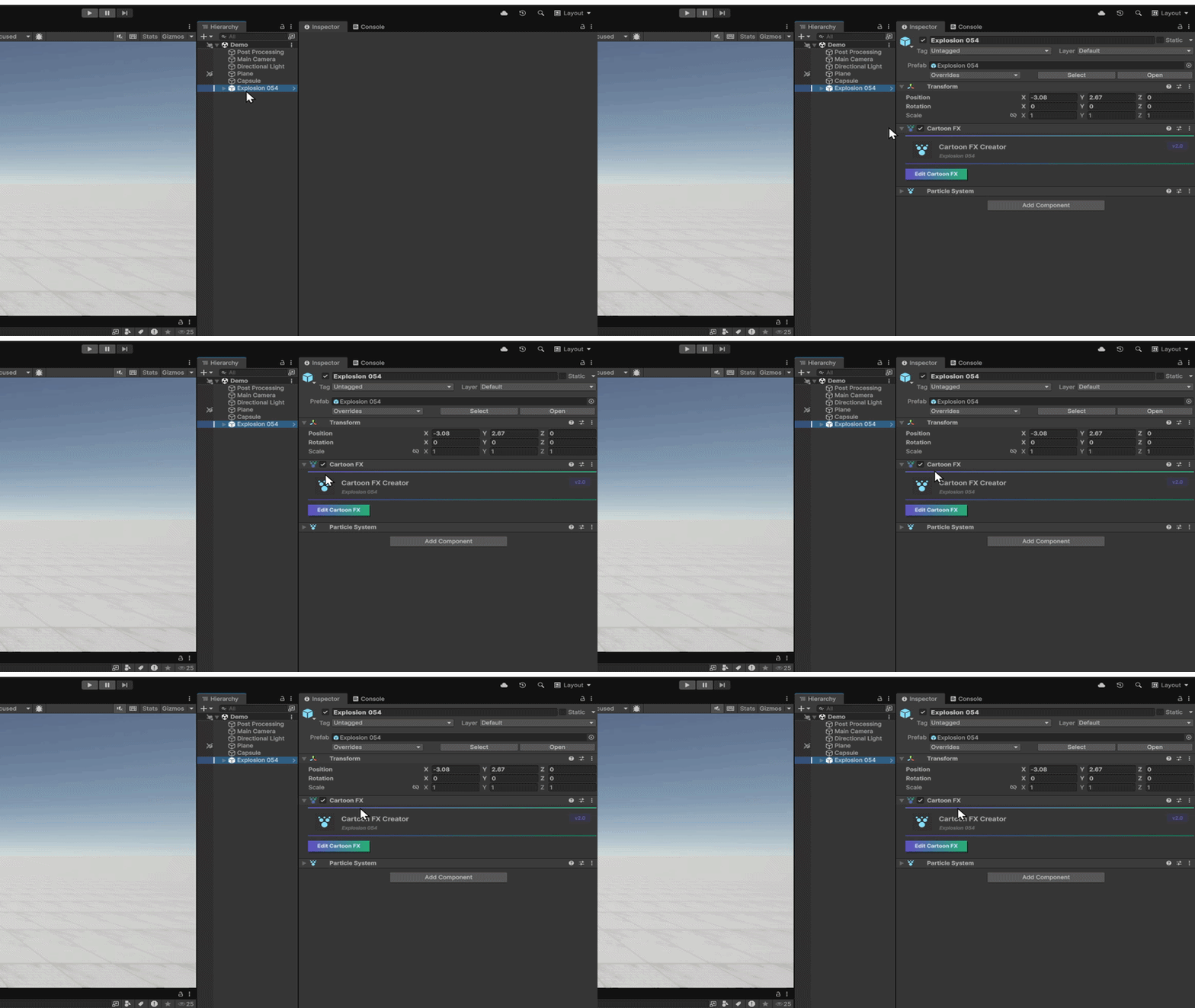
Find Cartoon FX component
In the inspector of your effect, locate the Cartoon FX component.
Last updated